What Is Geofencing Attendance and How Does It Work?
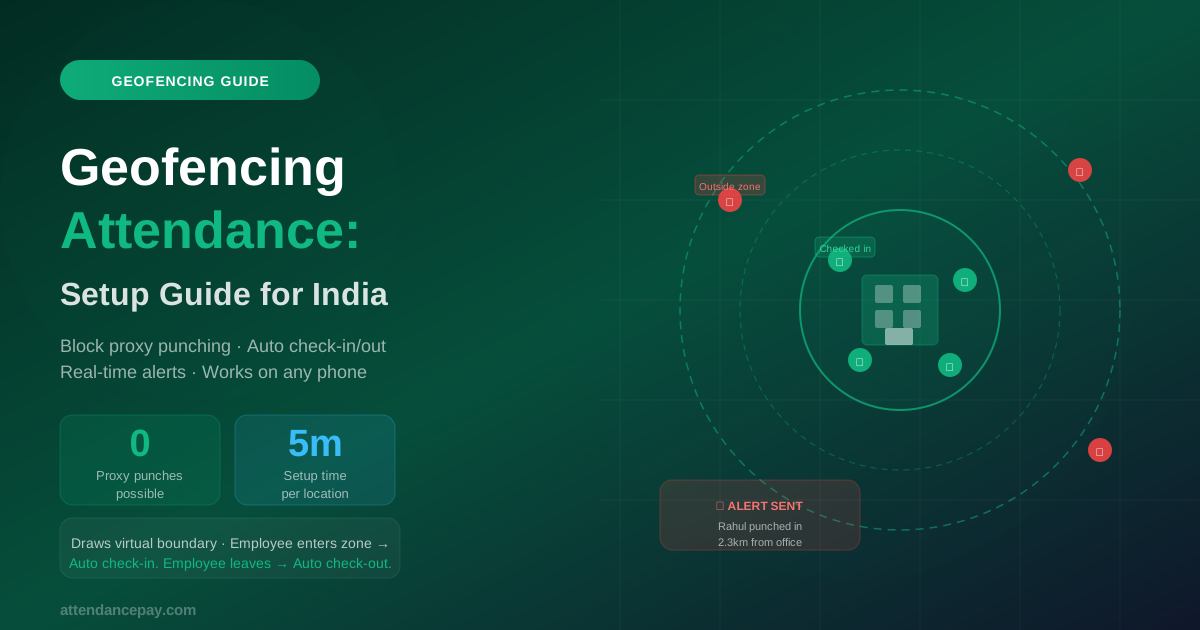
Geofencing attendance uses GPS coordinates to create an invisible virtual boundary around a physical location — your office, factory, construction site, or client premises. Employees can only mark attendance when their phone is physically inside this boundary.
The moment an employee tries to punch in from outside the geofence — from home, from a coffee shop, or from two streets away — the system rejects the attempt and logs it as an unauthorized check-in attempt. The manager gets an alert.
The moment an employee enters the geofenced zone, their phone can auto-notify them to check in. When they leave, the system can auto-record a check-out time.
Why Proxy Punching Is a ₹Crore Problem for Indian Companies
Proxy punching — where one employee marks attendance for a colleague who isn't at work — is one of the most widespread and costly HR frauds in India. Consider:
- A 200-employee company where 5% of employees proxy punch just 2 days per month = 200 phantom work-days × average day wage ₹800 = ₹1,92,000/year lost to payroll fraud
- Compliance risk: Labour inspectors who find discrepancies between attendance records and actual headcount have grounds for fines and prosecution
- Culture damage: honest employees resent colleagues who get paid for not showing up
Traditional biometric devices eliminated fingerprint proxy punching — but GPS attendance on phones brought a new version: employees sharing location spoofing apps, or punching in for each other before commuting in. Geofencing with liveness verification solves this completely.
Geofencing vs GPS Tracking: What's the Difference?
| Feature | GPS Tracking | Geofencing |
|---|---|---|
| What it records | Where the employee IS at punch time | Whether employee is INSIDE the allowed zone |
| Attendance control | Records location but allows punch from anywhere | Blocks punch outside the zone |
| Best for | Field staff, sales, delivery | Office staff, factory, fixed-location employees |
| Anti-proxy | Deters but doesn't fully prevent | Prevents completely (with liveness check) |
| Continuous tracking | Optional (trail throughout day) | Not required (just entry/exit) |
How to Set Up Geofencing in AttendancePay: Step-by-Step
Step 1: Create Your Geofence (2 minutes per location)
In AttendancePay admin: go to Settings → Locations → Add Geofence.
- Type your office address — the map auto-centers on it
- Drag the circle to set the radius (50m to 2km — most offices use 100–200m)
- Name the geofence (e.g., "Mumbai HQ", "Pune Branch", "Client Site — TCS Pune")
- Save
Step 2: Assign Employees to Geofences
Under Employee Profile → Attendance Settings, assign each employee to their primary geofence. Employees assigned to a geofence cannot check in outside it.
You can also assign multiple geofences to a single employee (e.g., a manager who visits multiple branches).
Step 3: Configure Alert Rules
Under Geofence → Alert Settings:
- Rejected punch alert — Send push notification to manager when an employee tries to punch from outside the zone
- Auto check-in — When an employee enters the zone, send a prompt to check in (optional)
- Forgotten punch-out alert — If an employee leaves the zone without checking out, auto-record the exit time
- Early departure alert — Notify manager if employee leaves zone before shift end
Step 4: Communicate to Employees
Before going live, send a brief announcement explaining:
- How to enable location permissions on their phone
- That location is only checked at punch time (not continuously tracked)
- What to do if they're working from a different location on a specific day (exception request process)
Handling Common Geofencing Exceptions
Employee Working from a Different Location
When an employee is assigned to work from a different branch or client site, the manager creates a one-day or date-range exception in the system. The employee's geofence assignment is temporarily overridden for those dates.
GPS Accuracy Issues
In India, especially in densely built areas (narrow lanes, basement offices, old buildings), GPS can be off by 30–80 meters. Solution: set your geofence radius to at least 150m for urban offices and 200m for buildings with known GPS interference.
Employees Using Fake GPS Apps
Some Android phones allow "mock location" apps that spoof GPS coordinates. AttendancePay detects mock location providers and either blocks the punch or flags it for manual review. You can configure this under Security Settings.
Remote Work Days
For approved WFH days, create a separate attendance policy that uses selfie + GPS (records location without geofence restriction). This way, WFH is explicitly approved and tracked separately from office days.
Geofencing by Industry: Different Setups for Different Needs
IT/Tech Offices
Single geofence around the office building. 100–150m radius. Face selfie required at punch-in for WFH days. Alert on any punch outside the zone.
Retail Chains
One geofence per store location. Store manager assigned to all store geofences. Staff restricted to their assigned store's geofence. Central dashboard shows all store check-ins in real time.
Construction Sites
Larger radius (500m–1km) because sites are physically large. Workers punch in at entry. Geofence boundary matches the site boundary. Automatic check-out when worker leaves site perimeter.
Client-Site Consulting
Create a geofence for each client location. Employees assigned to a project are mapped to the client's geofence for that project duration. Travel time between locations is tracked automatically.
Privacy: What Employees Should Know
A common concern: "Is the company tracking my location all day?" The answer, for geofencing-only attendance, is no.
- Location is checked only at the moment of punch — not continuously
- The system records a single coordinate (at check-in and check-out) — not a movement trail
- Outside working hours, location is never accessed
This is fundamentally different from live GPS tracking (which records movement throughout the day). Geofencing for attendance is a point-in-time check, not surveillance.
Conclusion
Geofencing is the most effective tool available to Indian HR teams for eliminating proxy punching without buying expensive hardware. It takes 5 minutes to configure per location, works on any Android or iOS phone, and requires no vendor, no installation, and no maintenance contract.
Set up your first geofence in under 10 minutes. Start your free trial → No credit card required.