What Is an Attendance Kiosk — and Do You Actually Need Expensive Hardware?
An attendance kiosk is a self-service station where employees check in and out independently — without a security guard with a paper register, and without queuing at an HR desk.
Traditional kiosks meant purchasing proprietary hardware: a dedicated fingerprint scanner, a mounting stand, a vendor contract, and a per-device license fee. That worked fine in 2010. In 2026, it's unnecessary.
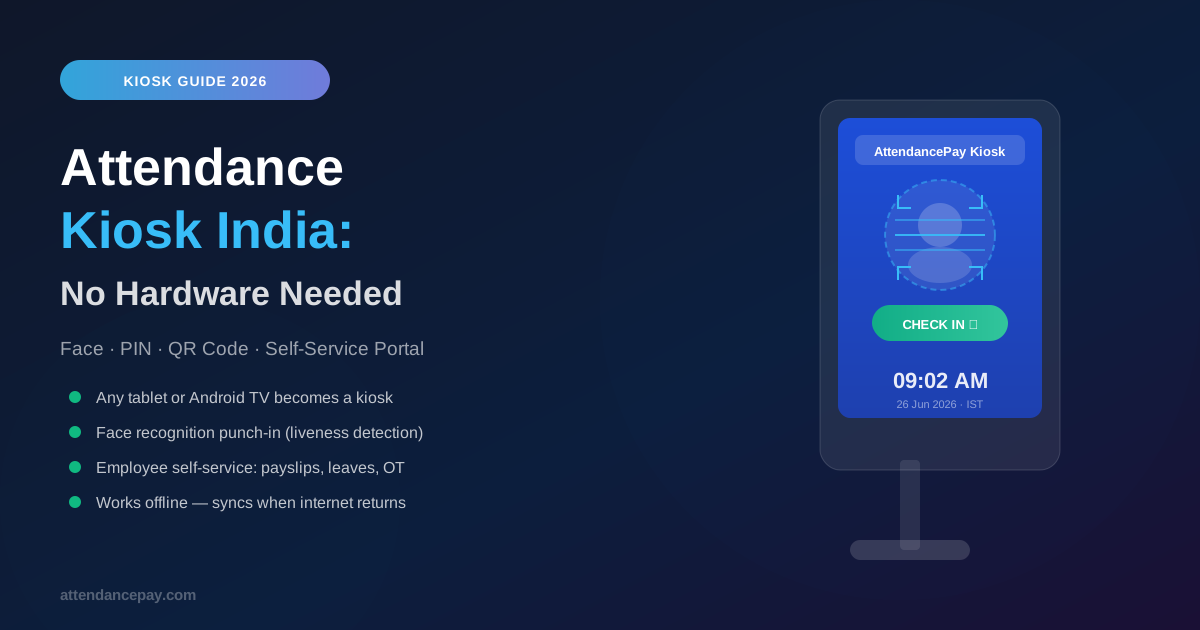
Modern attendance kiosk software runs on any Android tablet, iPad, or even a wall-mounted Android TV. The device you already have in the break room or reception becomes a fully functional punch station — with face recognition, PIN entry, QR code scanning, and employee self-service.
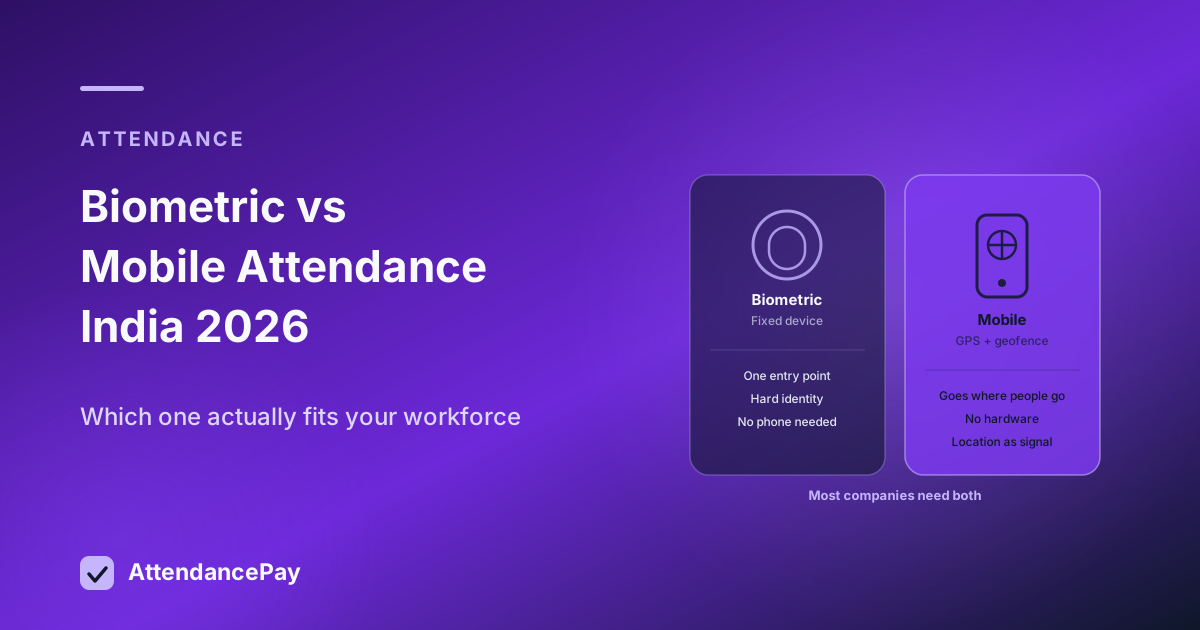
Kiosk vs Biometric Device: What's the Actual Difference?
| Feature | Traditional Biometric Device | Software Kiosk (Tablet) |
|---|---|---|
| Hardware cost | ₹8,000–₹25,000 per device | ₹0 (use existing tablet) |
| Setup time | 1–3 days (vendor visit) | 15 minutes (app install) |
| Identification method | Fingerprint only | Face, PIN, QR — all three |
| COVID / hygiene | Contact required | Fully contactless |
| Employee self-service | None (attendance only) | Payslips, leaves, OT requests |
| Software updates | Vendor visit required | Automatic via app store |
| Offline operation | Yes (stores locally) | Yes (buffers, then syncs) |
| Multi-location setup | Separate vendor contract | Same app, new tablet |
The 4 Check-In Methods on a Modern Attendance Kiosk
1. Face Recognition (Recommended)
The employee walks up to the tablet, looks at the camera — and within 2 seconds, their punch is recorded. No touching, no forgetting a card, no PIN to remember.
How anti-spoofing works: Modern face recognition uses liveness detection (3D depth or blink detection) to ensure it's seeing a real person — not a printed photo or phone screen. Fake attempts are logged and flagged for manager review.
Accuracy: Modern AI face recognition achieves 99.5%+ accuracy in controlled indoor environments (office reception, lobby).
2. PIN Entry
Each employee has a 4–6 digit PIN. They enter it on the touchscreen to check in or out. Fast, reliable, no camera dependency. Best used as a fallback when face recognition fails (glasses, face mask, poor lighting).
3. QR Code Scan
The app on each employee's phone contains their unique QR code. They tap the kiosk → hold up their phone → punch recorded. Best for offices where employees already use the mobile app regularly.
4. Employee ID Search
Employee types or speaks their ID number as a last-resort fallback. Useful for new joiners whose face hasn't been enrolled yet.
The Self-Service Layer: What Employees Can Do at the Kiosk
The biggest advantage of a software kiosk over a biometric device is the employee self-service portal baked in. After checking in, employees can:
- View payslip — See this month's salary breakdown without asking HR
- Check leave balance — Real-time remaining leaves by type (CL, PL, SL)
- Apply for leave — Submit leave applications from the kiosk screen
- View attendance history — See this month's check-in/check-out times
- Raise regularization request — If they forgot to punch, they can submit a correction request
- Check OT balance — How many overtime hours are pending reimbursement
- Download Form 16 (during tax season)
This alone eliminates 40–60% of daily HR queries in most offices.
How to Set Up an Attendance Kiosk with AttendancePay
What You Need
- Any Android tablet (7-inch minimum, 10-inch recommended) or iPad
- A wall mount or desk stand (₹200–₹800 from any hardware store)
- Wi-Fi connection (or mobile data as backup)
- An active AttendancePay account
Step 1: Enable Kiosk Mode (5 minutes)
In your AttendancePay admin panel, go to Attendance → Kiosk Settings. Enable kiosk mode and generate a pairing code.
Step 2: Install the App and Pair (5 minutes)
Install the AttendancePay Kiosk app from the Play Store (Android) or App Store (iOS). Open it, enter the pairing code from Step 1. The tablet is now linked to your company account.
Step 3: Enroll Employee Faces (10–20 minutes)
HR or an admin takes a 30-second face enrollment photo for each employee — either via the kiosk tablet itself or via the admin panel. Face data is encrypted and stored on your company's account, not on the device.
Step 4: Mount and Go Live
Mount the tablet at reception or the office entrance. The kiosk runs in locked mode — employees can only access the check-in screen and the self-service portal. They cannot exit the app or access other tablet functions.
Handling Common Kiosk Problems
Q: What if the internet goes down?
The kiosk stores all punch records locally during the outage. When connectivity is restored, all records sync automatically to the server. Timestamps are locked at the time of punch — not at sync time.
Q: What if an employee's face isn't recognized?
They can switch to PIN mode as a fallback. The system logs the fallback attempts, so you can see who relies on PIN regularly (suggesting their face enrollment may need to be redone).
Q: Can an employee use a photo of a colleague's face to punch?
Liveness detection prevents this. The camera detects depth and natural movement — a printed photo or phone screen doesn't pass. Any spoofing attempt is logged with a screenshot for manager review.
Q: What about employees with night shifts — is the kiosk on 24/7?
Yes, the kiosk runs 24/7. You can configure it to show a "Night shift mode" message during specific hours, but punching works at any time.
Q: Can we have multiple kiosk locations?
Yes — install the app on multiple tablets and pair each to your account. All punches from all locations appear in the same central dashboard. You can label each kiosk by location (e.g., "Main Gate", "Cafeteria", "Plant B").
Industries That Benefit Most from Software Kiosks
- IT offices — No vendor, no maintenance contract, works with existing tablets
- Retail chains — One tablet per store, managed centrally
- Hospitals and clinics — Contactless check-in for healthcare workers (infection control)
- Schools and colleges — Faculty and staff punch-in, visible to admin in real time
- Restaurants and hospitality — Kitchen staff, waitstaff, and managers on the same system
- Manufacturing reception — As a supplement to existing biometric at the plant gate
Cost Comparison: Biometric Hardware vs Software Kiosk
| Cost Item | Traditional Biometric | Software Kiosk |
|---|---|---|
| Device purchase (3 locations) | ₹30,000–₹75,000 | ₹0 (existing tablets) or ₹15,000 |
| Installation & setup | ₹3,000–₹8,000 (vendor visit) | ₹0 (self-setup in 30 min) |
| Annual maintenance | ₹5,000–₹15,000 | ₹0 (auto-updates) |
| Software license | ₹5,000–₹20,000/year | Included in HRMS plan |
| 3-year total cost | ₹58,000–₹1,50,000 | ₹15,000–₹25,000 |
Conclusion
If you're still running a fingerprint scanner purchased 5 years ago — or planning to buy one — it's worth a 30-minute pilot of a software kiosk first. Install the app on any spare tablet, pair it to your AttendancePay account, enroll 5 employees, and run it for a week alongside your current system. The switch usually happens within that week.
Set up your first kiosk in 15 minutes. Start your free trial →